Image to Text (OCR)
Read Text From Pictures and Scans
Copy the text out of a screenshot, photo or scanned PDF. Drop a file or paste from the clipboard, clean up the scan, and get plain text with a confidence score. The first run downloads about 7 MB once. 100% client-side: nothing is uploaded, nothing is stored.
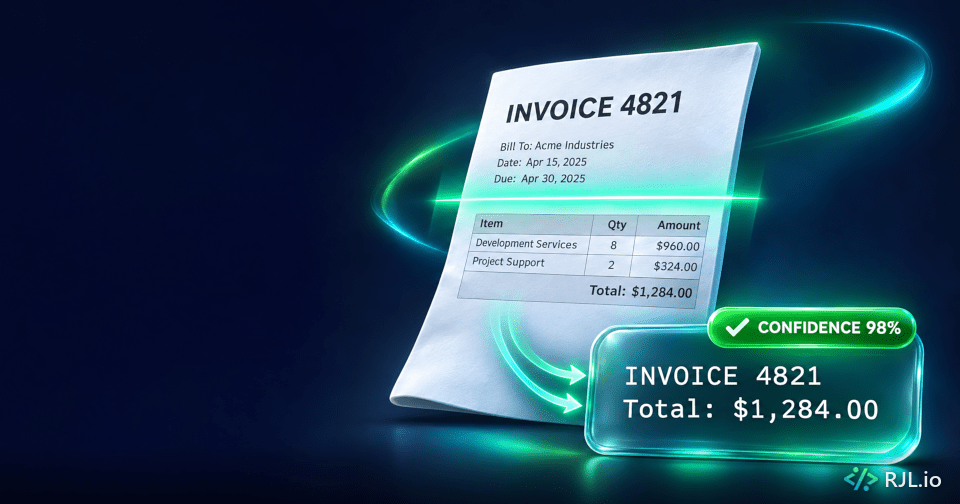
Image to Text (OCR) Tool
Add an image or a PDF to get started. Nothing leaves your browser.
This PDF already contains real text.
Reading the text layer is faster than OCR and exact, with no recognition mistakes.
Settings
English only for now. The first run downloads about 7 MB (the engine and the English data); your browser keeps it for next time.
OCR reads up to 20 pages per run.
Extracted text
Confidence
Nothing is uploaded. Your image or PDF is read and recognized inside this page, on your device. The only downloads are the recognition engine and the English language data (about 7 MB the first time, then kept by your browser), and they come from this site. OCR is best on clean, printed text; it is weak on handwriting, photos taken at an angle and busy backgrounds.
Common Use Cases
Screenshots
Paste a screenshot of an error message, a chat or a slide and copy the words instead of retyping them. Screen text is the easiest case for OCR.
Scanned PDFs
A scan is only a picture of a page, so you cannot search or copy it. Choose the pages you need and turn them into text you can edit.
Receipts and Letters
Photograph a flat receipt, letter or form in good light and pull out the figures and names. Always check numbers against the original.
Book and Article Pages
Copy a quotation from a printed page. Turn on Join lines into paragraphs to undo the line breaks and the hyphens at the ends of lines.
Accessibility
Text locked inside an image cannot be read by a screen reader or translated. Extract it to get text that assistive tools can use.
Skipping Data Entry
Pull a table of codes, an address block or a serial number off a picture and paste it into your work, then proofread the result.
What to Expect
Accuracy by kind of input
| Input | What to expect |
|---|---|
| Screenshot of screen text | Very good. Sharp, high-contrast and evenly lit. |
| Flat scan of printed text | Good at 200 dpi or more. Faded or skewed pages lose accuracy. |
| Phone photo of a page | Fair to good when the page is flat, sharp and fills the frame. |
| Photo of a sign or product | Hit and miss. Curves, glare and decorative fonts confuse it. |
| Handwriting | Poor. This engine reads print, not handwriting. |
| Tables and columns | The words are found, but the layout is lost and rows may merge. |
Clean-up options and limits
| Option or limit | When it helps |
|---|---|
| Grayscale | Colored paper, tinted backgrounds, colored text. |
| Increase contrast | Faded print, grayish paper, a flat-looking scan. |
| 2x upscale | Small text or a low-resolution picture. Slower. |
| Rotate | A page scanned sideways or upside down. |
| Pages per run | Up to 20 pages are recognized at a time. Reading a PDF's own text allows up to 200. |
| File size | Images up to 25 MB, PDFs up to 100 MB. |
| Language | English only for now. |
Frequently Asked Questions
OCR (optical character recognition) turns a picture of text into real text you can copy and edit. The engine finds lines and words in the image, then a trained model decides which character each shape is, and reports how sure it is.
No. Your file is read and recognized inside your browser, on your device. Nothing you add is uploaded, logged or stored. The page does download the recognition engine and the English language data from this site, but those are the same files for every visitor and contain nothing of yours.
The recognition engine (about 4 MB) and the English language data (about 3 MB) are downloaded once, about 7 MB in all. Your browser keeps them, so later visits start much faster. The download only starts when you press Extract text.
English only for now. Each extra language is its own data file of several megabytes, so languages will be added one at a time rather than making everyone download them all. Text in another language is usually read badly or as nonsense.
The confidence is the engine's own average certainty across the words it found, from 0 to 100. Above 85 is good, 70 to 84 is fair and below 70 means expect many mistakes. It is a guide, not a guarantee: a confident reading can still be wrong, so proofread names and numbers.
Start with a better picture: flat, sharp, evenly lit and upright. Then try Increase contrast, 2x upscale for small text, and Rotate if the page is sideways. Change one option at a time and watch the confidence number to see what helps.
Yes, and it is better. When a PDF already carries real text, the tool says so and offers to read that text directly, which is faster and exact. OCR is meant for PDFs that are only pictures of pages.
Not well. The engine is built for printed text, so handwriting comes out poorly. On tables and multi-column pages it finds the words but loses the layout, so rows and columns can run together. You get plain text, not a formatted document.
Up to 20 pages per run, chosen with the page range box, because recognition is slow and uses a lot of memory. The Stop button ends the work immediately and keeps the pages already finished.
Why We Built This Image to Text Tool
Most free OCR sites ask you to upload your picture to their server, and a scanned letter, a receipt or a page of a contract is not something to hand to a stranger. This tool does the reading inside your browser, so the picture never leaves your device and there is no account, queue or file limit set by a server.
The price of that privacy is a one-time download of about 7 MB for the recognition engine and the English data, and honest limits: it reads clean printed English well, it struggles with handwriting and angled photos, and it gives you plain text rather than a formatted copy of the page. We show a confidence score and a plain warning when a scan is poor, so you know when to check the result.
For PDFs the tool first looks for real text inside the file, and offers it when it exists, because reading a text layer is instant and exact. Only pages that are pictures need recognition. You choose the pages, and the Stop button really stops the work.
The recognition itself is done by the open-source Tesseract engine (Apache License 2.0), built for the browser and served from this site. Image to Text is part of RJL.io's collection of free developer tools. Turn pages into pictures first with PDF to Images, change a picture's format with the Image Converter, shrink a huge scan with the Image Resizer, check what a photo reveals with the EXIF Viewer, or count the words you extracted with the Word Counter. Every tool is 100% client-side.